
Add the Availability Calendar to a Page
The TailDesk availability calendar gives visitors a quick overview of which dates are available before they start a booking. You can place the calendar on the same page as your booking form or on a separate availability page.
Create or open an availability page
- Log in to your WordPress dashboard.
- Go to Pages.
- Create a new page, or open the page where you want to show availability.
Add the TailDesk availability calendar
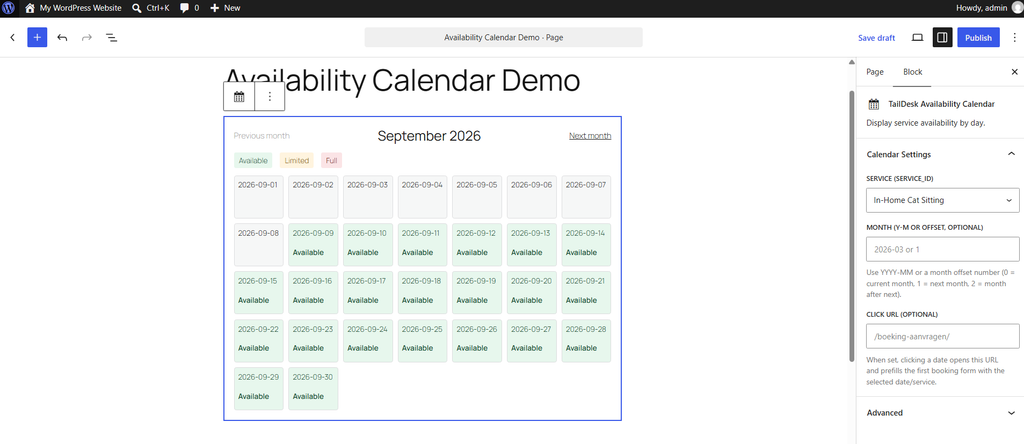
- In the WordPress editor, place your cursor where the calendar should appear.
- Add the TailDesk availability calendar using the TailDesk calendar block.
- Choose the service whose availability you want to display.
- Save or publish the page.
Check the calendar on the front end
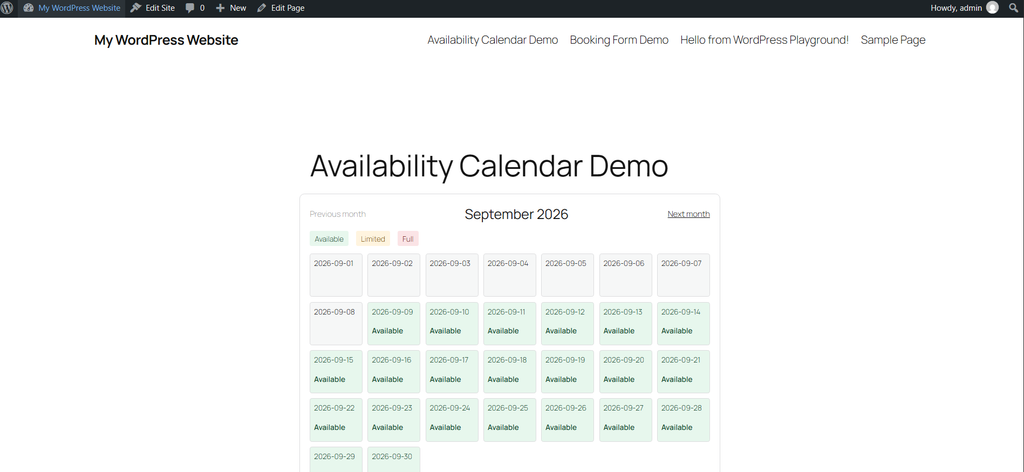
Open the page as a visitor and check that the calendar loads correctly. Available dates should be easy to distinguish from dates with limited availability or dates that are fully booked.
The calendar reflects the capacity and booking data configured in TailDesk. When capacity changes because of new bookings or blocked dates, the availability shown to visitors updates accordingly.
Use the calendar together with your booking page
For the clearest customer flow, place the availability calendar close to your booking form or link available dates to your booking page. TailDesk also supports redirecting available calendar dates to a booking page, which is covered later in this documentation.