Use Google Calendar Events to Block Capacity
TailDesk Pro can use external Google Calendar events as capacity blockers. This lets your public TailDesk availability take existing work or personal calendar events into account without creating matching TailDesk bookings by hand.
Before Google events can affect capacity
The service must be connected to Google Calendar through TailDesk Pro.
- Go to TailDesk > Settings > Google Calendar Sync.
- Authorize the correct Google account.
- Go to TailDesk > Services and edit the service.
- Open Google & Mails.
- Select the Google calendar that should affect that service.
- Save the service.
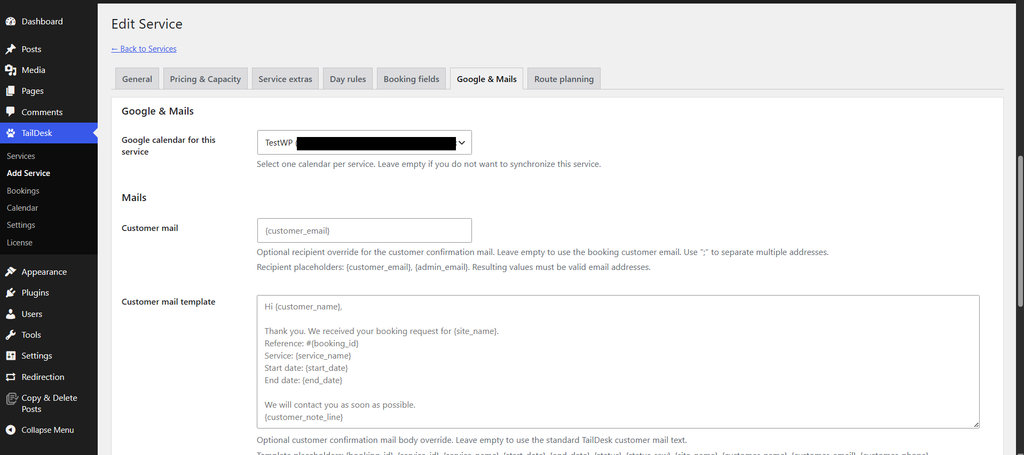
Connecting the Google account globally is not enough by itself. Each service must have a Google calendar selected before external events from that calendar can affect its capacity.
How an external Google event blocks capacity
When TailDesk pulls events from a Google calendar linked to a service, qualifying external events become capacity overlays.
Each external event contributes one capacity unit for every date it covers. TailDesk adds these overlay units to the local bookings that already consume capacity.
Capacity example
Suppose a service has Max per day = 4 on a particular date:
- 2 TailDesk bookings consume capacity
- 1 external Google Calendar event covers that date
TailDesk calculates:
4 maximum capacity
- 2 TailDesk bookings
- 1 Google Calendar overlay
= 1 remaining capacity unit
With the default availability rules, that day becomes Limited because only one place remains.
You do not need to create a fake TailDesk booking
An external Google event remains a Google Calendar event. TailDesk does not convert it into a normal TailDesk booking record.
Instead, the synchronization layer uses the event as an availability overlay. This is useful when time is already reserved outside TailDesk but should still reduce the number of bookings customers can request.
TailDesk booking events are not counted twice
TailDesk Pro also creates Google Calendar events for local TailDesk bookings when synchronization is active. Those TailDesk-owned events are excluded from the external overlay calculation.
This prevents the same booking from consuming one capacity unit in TailDesk and then a second capacity unit because its synchronized Google event also exists.
Cancelled Google events do not block capacity
Cancelled remote events are not stored as active capacity overlays. Once the synchronization data is updated, those events should no longer reduce TailDesk availability.
Events affect every linked service using that calendar
If the same Google calendar is linked to more than one TailDesk service, external events from that calendar can affect capacity for each of those services.
TailDesk warns in the service editor when a Google calendar is already linked to another service. This is important when deciding whether services should share a calendar or use separate calendars.
Where you can see Google capacity
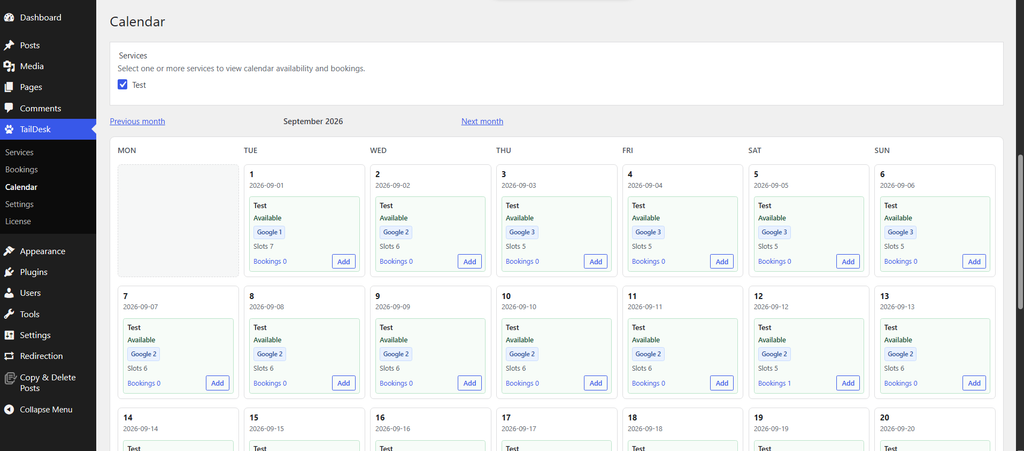
The TailDesk admin Calendar can show Google overlay counts alongside normal booking and availability information. A day may display a value such as Google 1 when one external event is reducing capacity.
The resulting reduced availability is also used by the public Booking Form and Availability Calendar.
When Google changes reach TailDesk
Google-to-WordPress changes follow the pull interval configured under Google Calendar Sync. Available intervals are Daily, Twice daily and Hourly.
If you have just added, changed or removed a Google Calendar event and want TailDesk to refresh immediately, use Synchronize now.
Interaction with Day Rules and service capacity
Google overlays are combined with TailDesk’s effective service capacity. A matching Pro Day Rule can first change the day’s capacity, after which local bookings and external Google overlays reduce the remaining amount.
For example, if a Day Rule lowers a service from 6 to 3 places on a date, and there are 2 local bookings plus 1 external Google event, the effective remaining capacity is zero.
Full capacity and over-limit requests
A Google event does not create a special type of Full status. It simply contributes to the normal capacity calculation.
If the resulting capacity reaches zero, the day is Full under normal behavior. TailDesk Pro can still allow a booking request when the service or a matching Day Rule permits over-limit requests, but this does not add extra capacity.
Troubleshooting Google capacity blockers
- Confirm that Google Calendar Sync is connected.
- Confirm that the correct Google calendar is selected for the service.
- Use Synchronize now after changing an external event.
- Check the TailDesk admin Calendar for Google overlay counts.
- Make sure the event is not a TailDesk-owned synchronized booking event.
- Check whether the event has been cancelled in Google.
- If capacity still differs from what you expect, also review local booking statuses and any matching Day Rules.
Using Google events as capacity blockers lets TailDesk Pro reflect work that already exists outside the booking system, helping keep public availability closer to your real schedule.