Connect TailDesk to Google Calendar
TailDesk Pro can connect your booking workflow to Google Calendar. TailDesk sends booking changes to Google in real time and periodically pulls Google Calendar changes back into WordPress.
Before you connect
Google Calendar Sync is a TailDesk Pro feature and requires an accepted Pro license state. Make sure TailDesk Free and TailDesk Pro are active before starting the connection.
Open Google Calendar Sync
- Go to TailDesk > Settings.
- Open Google Calendar Sync.
- Click Authorize.
- Complete the Google authorization process.
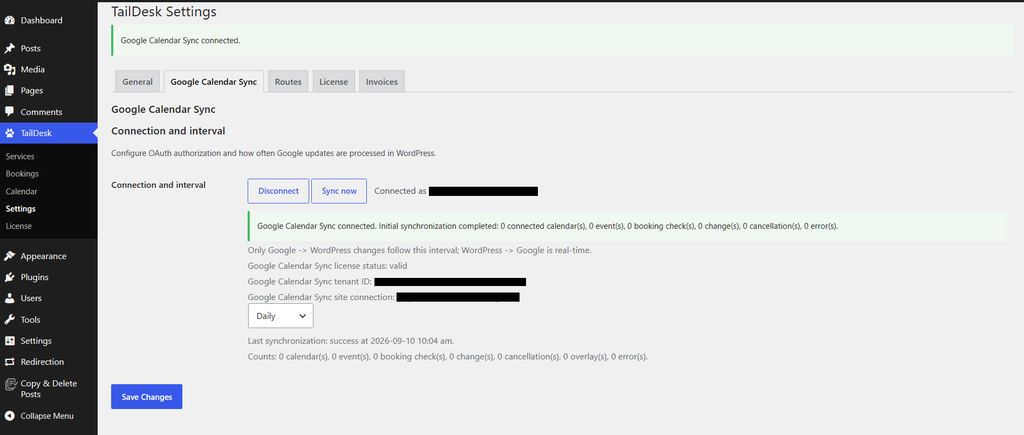
- Return to TailDesk and confirm that the correct Google account is shown as connected.
Choose how often Google changes are pulled into TailDesk
After connecting, choose the Google-to-WordPress synchronization interval:
- Daily
- Twice daily
- Hourly
This interval controls changes coming from Google Calendar to WordPress. Changes going from TailDesk to Google Calendar are synchronized in real time when the relevant booking lifecycle events occur.
Link a Google Calendar to each service
Authorizing the Google account does not automatically enable synchronization for every TailDesk service. Each service needs its own Google Calendar selection.
- Go to TailDesk > Services.
- Edit the service you want to synchronize.
- Open the Google & Mails tab.
- Select the Google calendar you want to use for that service.
- Save the service.
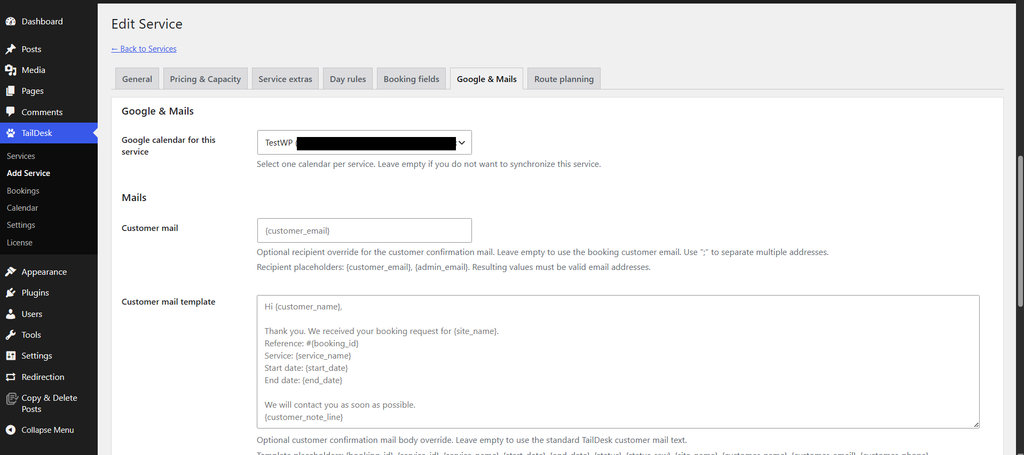
Leave the selector blank when that service should not synchronize with Google Calendar.
One calendar per service
A service can be linked to one Google calendar. TailDesk warns you when the same Google calendar is also linked to another service, because external events in that calendar can affect capacity for every linked service.
If a previously stored calendar can no longer be found in the Google account, TailDesk can still show it as an unknown stored calendar so you can see that a previous binding exists.
What TailDesk sends to Google Calendar
For a linked service, TailDesk creates or maintains Google Calendar events for booking statuses that consume capacity:
- Pending
- Confirmed
- Completed
Rejected and Cancelled bookings should not keep a TailDesk booking event in Google Calendar.
The Google event is an all-day busy event. TailDesk converts its inclusive booking end date to Google’s exclusive all-day end date automatically.
What the Google event contains
The default event title follows the pattern:
TailDesk: Service name (Customer name)The event description can include booking information such as the Booking ID, service, status, customer, email, phone and note.
External Google events can reduce TailDesk capacity
Google Calendar Sync is not only for copying TailDesk bookings to Google. External events in a linked calendar can also reduce the available capacity for that service.
Each qualifying external Google event contributes one capacity overlay unit for every date it covers. TailDesk combines those overlays with local capacity-consuming bookings when calculating availability.
TailDesk-owned Google events that are already linked to local bookings are excluded from this external overlay calculation, so the same booking is not counted twice.
Synchronize now
Use Synchronize now when you want TailDesk to run an immediate synchronization instead of waiting for the next scheduled Google-to-WordPress pull.
Manual synchronization also acts as a reconciliation step. TailDesk can check linked calendars, refresh external capacity overlays and repair missing booking-event links where appropriate.
Google changes can update TailDesk bookings
When the linked Google event for a TailDesk booking contains newer date information, inbound synchronization can update the booking dates in WordPress.
If a linked TailDesk event is deleted from Google Calendar, TailDesk can remove the stale link and cancel the local booking. For that reason, deleting a TailDesk-generated event in Google is not the same as simply hiding it from view.
Disconnect Google Calendar
Use Disconnect on the Google Calendar Sync settings page when you want to remove the site’s active Google authorization.
If you only want to stop synchronization for one service, you normally do not need to disconnect the entire Google account. Edit that service and set its Google calendar selection to blank instead.
Troubleshooting the connection
- Check that TailDesk Pro has an accepted license state.
- Confirm that the expected Google account appears as connected.
- Confirm that the service itself has a Google calendar selected.
- Use Synchronize now for an immediate check.
- Review any last synchronization error or sync summary shown on the settings page.
- If no calendars are available in the service editor, return to Settings > Google Calendar Sync and check the connection.
Once the account and service binding are configured, TailDesk Pro keeps booking events, Google changes and capacity overlays working together as part of the same availability workflow.