
View Capacity and New Requests on the WordPress Dashboard
TailDesk adds dashboard widgets to WordPress so you can quickly review upcoming capacity and recent booking requests without opening the full TailDesk admin screens.
Open the WordPress Dashboard
Open your normal WordPress Dashboard. TailDesk can show two useful widgets there:
- TailDesk: Capacity Coming Days
- TailDesk: New Requests
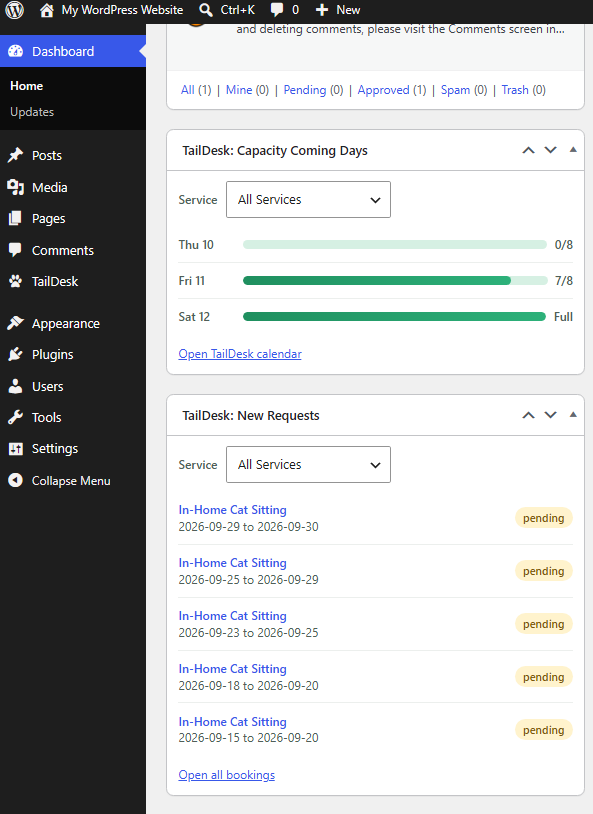
Capacity Coming Days
The TailDesk: Capacity Coming Days widget gives you a quick view of active service capacity for the next three days.
The widget can show status labels such as Full, Almost full and capacity values in an x/y format, depending on the service and remaining availability.
Filter by service
Use the service filter to show:
- All Services
- One specific service
Your selected service filter is stored for your own WordPress user account. Another administrator or TailDesk user can therefore use a different dashboard filter without changing yours.
Use Open TailDesk calendar when you want to move from the quick dashboard summary to the full availability view.
New Requests
The TailDesk: New Requests widget helps you spot Pending booking requests that still need attention.
The widget shows up to five matching Pending requests for the selected service context and provides links to the individual Booking Details screens.
If there are no matching Pending requests, the widget shows an empty state instead.
Use Open all bookings to open the complete TailDesk > Bookings overview.
A useful daily workflow
- Check Capacity Coming Days to see where availability is becoming tight.
- Review New Requests for Pending bookings that need a decision.
- Open a request to review its Booking Details.
- Use the TailDesk Calendar when you need a broader view of capacity across services and dates.
TailDesk Pro Day Planning
With TailDesk Pro and the Routes module enabled, Day Planning is available as a dedicated operational screen. It combines a daily booking overview with the Route Planner.
The Bookings tab shows all bookings that overlap the selected date, including cancelled and non-routeable bookings, and provides a direct Edit action. The Route tab is used when you want to calculate or adjust the route for bookings with usable locations.
Administrators can open Day Planning from the Services menu. Users with the restricted Pet Sitter role get Day Planning as a main menu item when the Routes module is enabled.
See Use Day Planning and the Route Planner for the complete workflow.
Who can see the Dashboard widgets?
The widgets are part of TailDesk’s normal WordPress admin workflow and depend on the user’s TailDesk permissions. Administrators receive the operational TailDesk capabilities by default.
TailDesk Pro also provides a restricted Pet Sitter role for users who do not need the full WordPress administration interface. Instead of exposing all WordPress menus, this role focuses on the relevant TailDesk areas such as Bookings, Day Planning and Services. This gives staff a simpler operational workspace without the usual WordPress administration clutter.