
Create and Print an Invoice for a Booking
TailDesk can generate an invoice from an existing booking. The invoice is created as a snapshot of the booking and invoice settings at that moment, so later changes to the booking or company details do not silently rewrite the generated invoice.
Before you generate an invoice
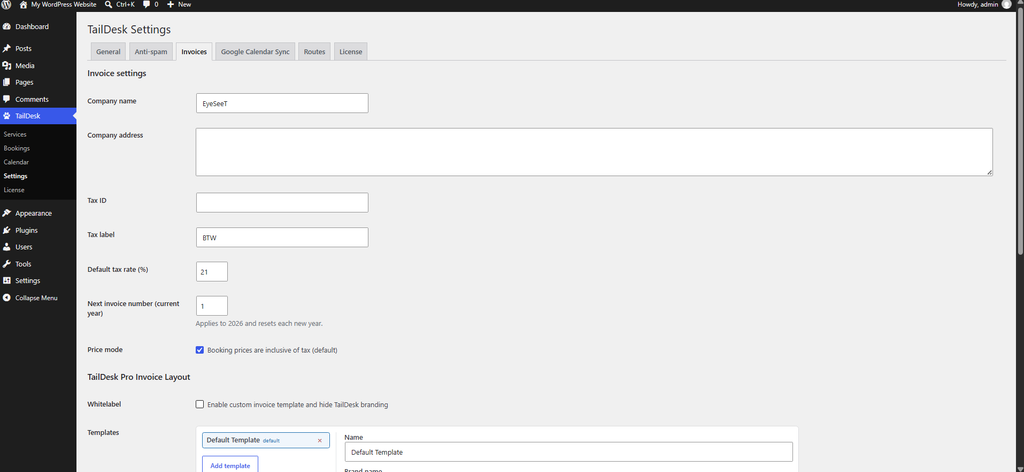
Make sure your invoice settings are configured under TailDesk > Settings > Invoices. These settings can include your company name, company address, Tax ID, tax label, default tax rate, invoice numbering and whether booking prices are inclusive or exclusive of tax.
Generate an invoice from a booking
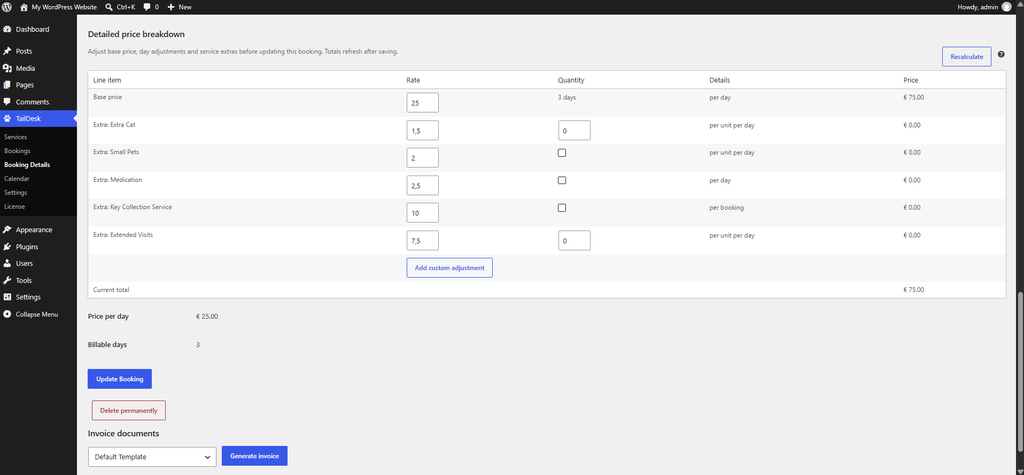
In TailDesk Free, you can generate an invoice from the Bookings overview or from Booking Details.
- Go to TailDesk > Bookings.
- Find the booking you want to invoice.
- Use Generate invoice when no invoice snapshot exists yet.
- After generation, use Open invoice to view the saved invoice.
What the invoice contains
The generated invoice snapshot can contain:
- Invoice number
- Generated date and time
- Service name
- Booking date range
- Billable days
- Customer name and email
- Issuer company details
- Tax rate and tax mode
- Pricing rows
- Subtotal and total values
When a TailDesk Pro booking contains detailed pricing lines, the invoice can use those stored lines as part of the invoice output.
Print the invoice
The TailDesk Free invoice opens as a dedicated HTML invoice preview. The preview includes controls such as Back and Print.
- Open the generated invoice.
- Click Print.
- Use your browser’s print dialog to print the invoice or choose a PDF destination if your browser or operating system provides one.
Important: TailDesk Free does not generate a dedicated server-side PDF file. Printing uses the browser’s normal print workflow.
Invoices are immutable snapshots
Once an invoice has been generated, TailDesk stores its rendered invoice data as a snapshot. Later changes to the booking, service price, tax settings or company details do not automatically update that invoice.
This is intentional: an invoice represents the values that were used when that document was generated.
Discard and regenerate an invoice in TailDesk Free
On Booking Details, an existing Free invoice can be removed with Discard invoice. The next time you choose Generate invoice, TailDesk creates a fresh snapshot using the current booking and invoice settings.
Use this deliberately, because the new invoice is a newly generated document and follows the current invoice numbering behavior.
Invoice numbering
TailDesk uses a yearly invoice sequence, for example 2026-0001. The invoice number is separate from the booking ID.
The Next invoice number setting controls the next sequence for the current year. TailDesk can warn when a configured number would conflict with an already generated invoice.
TailDesk Pro invoice documents
TailDesk Pro extends invoicing with reusable invoice templates and, when multiple invoice documents are enabled, the ability to generate more than one invoice document for a booking.
On Booking Details, the Pro Invoice documents workflow lets you:
- Select an invoice template
- Generate an invoice
- View previously generated invoice documents
- Open a specific document
- Delete a generated document
The configured default template is preselected when you generate a new invoice.
Custom invoice templates with TailDesk Pro
TailDesk Pro adds a TailDesk Pro Invoice Layout section under TailDesk > Settings > Invoices. You can create multiple templates with their own name, brand name, logo URL and template markup, and choose which template is the default.
A Pro invoice template can use placeholders for invoice numbers, dates, customer and issuer data, totals and pricing rows. This lets you create a more branded and detailed invoice layout while keeping each generated invoice as an immutable document snapshot.
Booking price and invoice are separate
The booking has its own pricing snapshot, and the invoice creates a separate document snapshot. Changing the booking price after an invoice has been generated does not automatically rewrite that invoice.
If an invoice needs to reflect updated booking data, use the appropriate discard/regenerate or Pro invoice-document workflow instead of expecting the existing document to update automatically.