
Understand Available, Limited and Fully Booked Statuses
TailDesk shows availability per service and per day. The status customers see is based on the service capacity and the bookings that already use that capacity. Understanding the difference between Available, Limited and Full makes it easier to plan your schedule and understand what customers can still request.
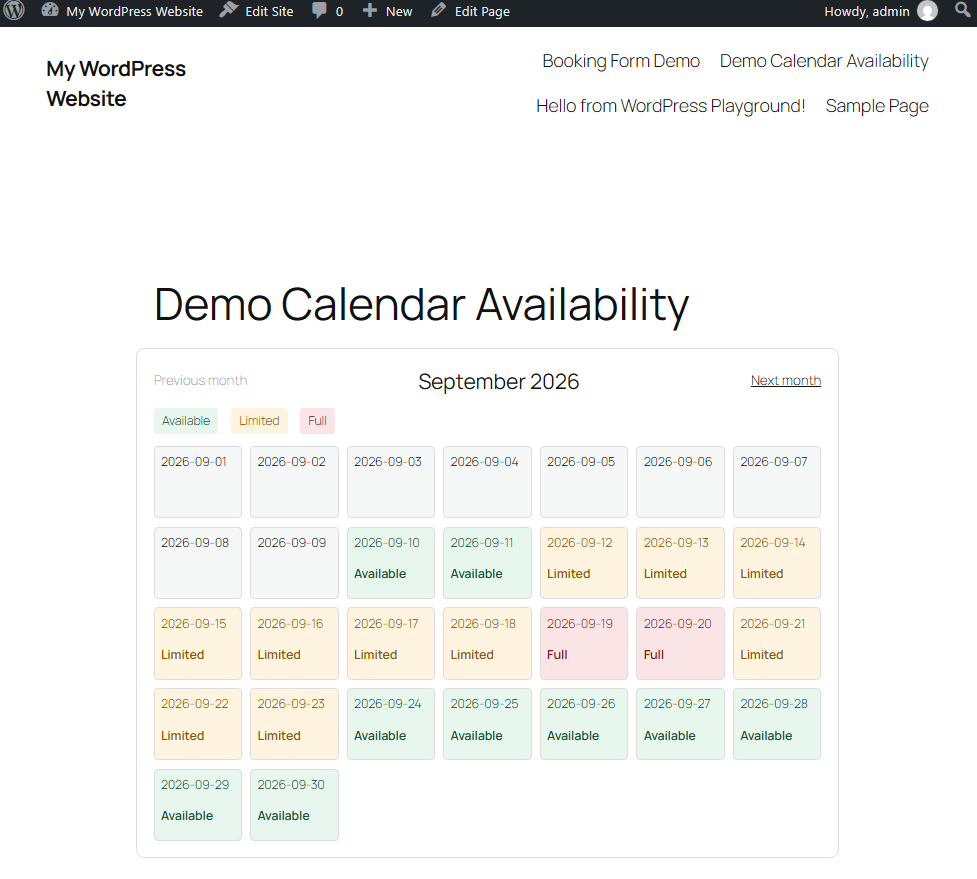
How the availability statuses work
Every service has a Max per day value. TailDesk compares that capacity with the number of capacity-consuming bookings on each date.
| Status | Default meaning | Can customers select the date? |
|---|---|---|
| Available | More than 1 capacity unit remains | Yes |
| Limited | Exactly 1 capacity unit remains | Yes |
| Full | No capacity remains | No, unless overflow requests are enabled in Taildesk Pro |
For example, if a service has a maximum capacity of 4 bookings per day and 2 capacity-consuming bookings already cover a date, 2 places remain and the date is Available. When a third booking is added, only 1 place remains and the date becomes Limited. Once all 4 places are used, the date becomes Full.
Which booking statuses use capacity?
A booking does not need to be confirmed before it affects availability. TailDesk reserves capacity for active booking requests so that new requests cannot silently overbook the same date.
| Booking status | Uses capacity? |
|---|---|
| Pending | Yes |
| Confirmed | Yes |
| Completed | Yes |
| Rejected | No |
| Cancelled | No |
This means a newly submitted booking request immediately reduces the remaining capacity while its status is Pending. If you later change that booking to Rejected or Cancelled, the capacity becomes available again.
Availability is calculated for every day in the booking
TailDesk is a day-based booking system. A booking from 10 June through 12 June covers three days, and each of those dates is checked separately. If one date in the requested range is full, the complete request is normally blocked.
Availability is also checked again when the customer submits the form. This prevents an outdated calendar view from creating an overbooking when another customer has taken the final place in the meantime.
More control with TailDesk Pro
TailDesk Free provides the standard Available, Limited and Full logic. TailDesk Pro adds more control for businesses whose capacity changes by date or where a simple fixed limit is not enough.
Choose when a date becomes Limited
With Pro, the Limited threshold can be configured per service under Pricing & Capacity. Instead of showing Limited only when one place remains, you can make TailDesk show Limited earlier.
For example, with a threshold of 3, a date becomes Limited when 3 or fewer places remain. Setting the threshold to 0 disables the Limited state, so dates remain Available until capacity reaches zero.
Allow requests even when capacity is full
Pro can also Allow booking requests even when day capacity is full. This is useful when you still want to receive a request and decide manually whether you can accommodate it.
This option does not add extra capacity. The date is still full; TailDesk simply allows the customer to submit a request despite that limit, with a warning that confirmation is not guaranteed.
Change capacity for specific dates with Day Rules
Pro Day Rules can override the normal service capacity for selected dates or repeating periods. You can temporarily lower or increase the daily limit, set a day to zero capacity, and decide whether over-limit requests should be allowed or blocked for those dates.
This makes it possible to handle weekends, holidays, seasonal periods or recurring days differently without changing the service’s normal Max per day setting.
Let Google Calendar events reduce capacity
When a Pro service is connected to Google Calendar, external Google events can also count as capacity blockers. TailDesk combines these calendar overlays with local bookings when calculating the remaining capacity, helping keep your public availability aligned with work already scheduled outside TailDesk.
Where you see these statuses
The same capacity calculation is used throughout TailDesk. You can review availability in the TailDesk admin Calendar, and customers can see the resulting state in the public Availability Calendar and during date selection in the Booking Form.
If a date appears Full unexpectedly, check the bookings that overlap that day and their statuses. With TailDesk Pro, also check any matching Day Rules and, when Google Calendar Sync is enabled, external Google Calendar events that may be consuming capacity.