Reduce Spam in Booking Requests
TailDesk includes several anti-spam protections for the public Booking Form. The built-in protections work without a third-party CAPTCHA, and you can optionally add Cloudflare Turnstile or Google reCAPTCHA for an extra layer.
Open the Anti-spam settings
- Go to TailDesk > Settings.
- Open the Anti-spam tab.
- Review the built-in protection settings and, if needed, configure a CAPTCHA provider.
- Save your changes.
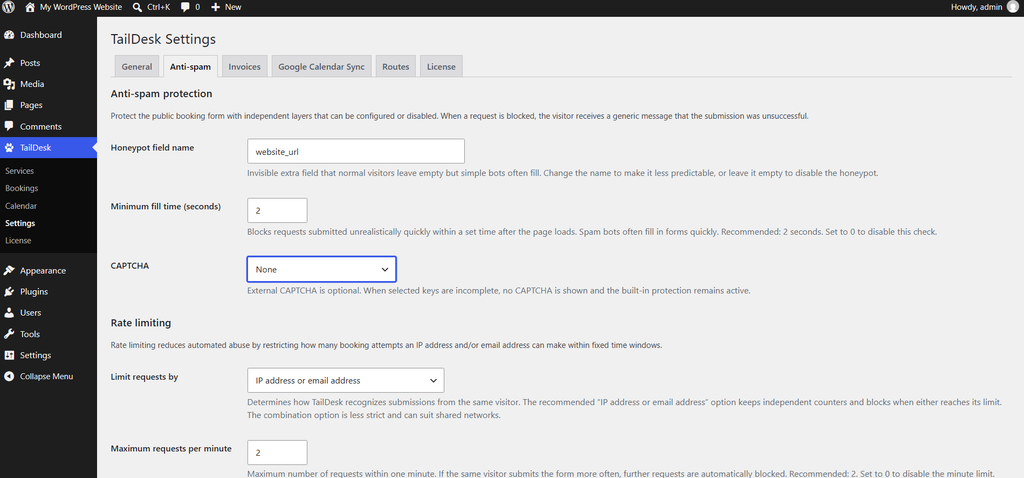
Built-in protection is enabled by default
TailDesk uses three built-in protections by default:
- Honeypot – adds an invisible field that normal visitors should leave empty.
- Minimum fill time – blocks submissions that arrive unrealistically quickly.
- Rate limiting – limits how many booking requests can be submitted in a short period.
These protections work without requiring visitors to complete a CAPTCHA.
Honeypot field
The default honeypot field name is website_url. Genuine visitors do not see or complete this field, while simple spambots may fill it automatically.
You can change the field name to make it less predictable. Leave the setting empty if you intentionally want to disable the honeypot layer.
Minimum fill time
The minimum fill time checks whether a form was submitted too quickly to be realistic for a human visitor.
The default value is 2 seconds. TailDesk accepts values from 0 to 3600 seconds. Set it to 0 to disable this check.
The default 2-second setting is a useful starting point because it blocks very fast automated submissions without adding visible friction for normal visitors.
Rate limiting
Rate limiting controls how many requests can be submitted from the same visitor identifiers within a minute or an hour.
The default mode is IP address or email address. TailDesk tracks the IP-based and email-based identifiers independently and blocks the request when either limit is reached.
| Setting | Default |
|---|---|
| Rate limit mode | IP address or email address |
| Maximum requests per minute | 2 |
| Maximum requests per hour | 5 |
Setting either numeric limit to 0 disables that specific time window.
Other rate limit modes
- Off
- IP address only
- Email address only
- IP address or email address
- Combination of IP address and email address
The Combination mode is less strict in shared-network situations because the same IP can still submit with a different email address without automatically sharing the exact same combined identifier.
Add an optional CAPTCHA
TailDesk supports the following CAPTCHA options:
- None
- Cloudflare Turnstile
- Google reCAPTCHA v2 checkbox
- Google reCAPTCHA v3
Each provider requires a site key and secret key. For reCAPTCHA v3, TailDesk also provides a minimum score setting with a default of 0.5.
Incomplete CAPTCHA configuration does not break the form
If you select a CAPTCHA provider but do not enter both required keys, TailDesk treats that CAPTCHA as inactive. The public Booking Form continues using the built-in honeypot, timing and rate-limit protections.
The WordPress admin shows a warning so you know the selected CAPTCHA provider is not fully configured.
Secret keys are not shown again
Stored CAPTCHA secret keys are kept server-side and are intentionally not printed back into the settings page. After saving, the secret field can appear blank even though a secret is already stored.
Leave the blank field unchanged to keep the stored secret. Use Remove the stored secret key when you intentionally want to clear it.
IP privacy and reverse proxies
TailDesk does not permanently store raw IP addresses for rate limiting. Temporary identifiers are salted and hashed.
Client IP detection supports common Cloudflare and reverse-proxy headers. If your site runs behind a proxy or CDN and rate limiting behaves unexpectedly, verify that the proxy overwrites client IP headers correctly and that visitors cannot reach the origin server directly with spoofed headers.
Clear page or CDN cache after changing form-facing settings
If you change anti-spam settings but the public Booking Form still behaves as before, clear any full-page cache or CDN cache. A cached page may continue serving older form configuration until that cache expires.
What visitors see when a request is blocked
TailDesk returns a general submission failure message when an anti-spam check blocks a booking request. It does not tell the visitor exactly which anti-spam rule was triggered.
Recommended starting configuration
- Keep the honeypot enabled.
- Keep the minimum fill time at the default 2 seconds unless you have a specific reason to change it.
- Keep rate limiting enabled with the default IP address or email address mode.
- Add a CAPTCHA only when you need additional protection or are still receiving unwanted requests.
The built-in layers are designed to reduce automated spam without adding unnecessary friction to every normal booking request.