
View and Filter Booking Requests
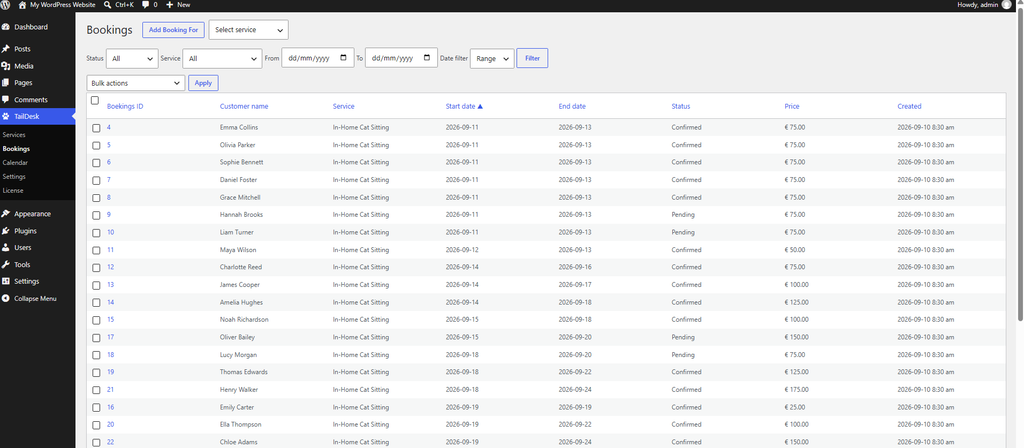
TailDesk > Bookings is the main overview for new booking requests and existing bookings. You can use filters to quickly find bookings by status, service or date, and sort the list to focus on the bookings that need attention.
Open the Bookings overview
- Open your WordPress admin.
- Go to TailDesk > Bookings.
The page acts both as an inbox for new booking requests and as a historical overview of existing bookings.
Filter by booking status
Use the Status filter to show bookings in a specific stage of your workflow.
- All – show bookings regardless of status.
- Pending – new or undecided booking requests.
- Confirmed – accepted bookings.
- Rejected – requests you have declined.
- Cancelled – bookings that have been cancelled.
- Completed – completed bookings kept in your history.
Filtering by Pending is especially useful when you want to focus on booking requests that still need a decision.
Filter by service
Use the Service filter to show bookings for one specific service, or leave it set to all services to view your complete booking list.
This is useful when you manage several services with separate schedules or capacities and only want to review one of them.
Filter bookings by date
The From and To fields define the date boundaries. The Date filter determines how TailDesk compares those dates with each booking.
| Date filter | What it finds |
|---|---|
| First day | Filters by the booking’s Start date. |
| Last day | Filters by the booking’s End date. |
| Range | Finds bookings that overlap the selected From–To period. |
When to use First day
Use First day when you want to find bookings that start during a particular period.
When to use Last day
Use Last day when you want to find bookings that end during a particular period.
When to use Range
Range is usually the best choice when you want to know which bookings are active at any point during a period. TailDesk returns bookings whose date range overlaps the From and To dates, even when the booking itself started earlier or ends later.
For example, if you filter 10–12 June using Range, a booking from 8–11 June is included because it overlaps the selected period.
After choosing your filters, click Filter to refresh the booking list.
Understand the booking list columns
The Bookings table includes the main information you need to identify and compare requests:
- Booking ID
- Customer name
- Service
- Start date
- End date
- Status
- Price
- Created
Click a booking to open its Booking Details screen when you need to review customer information, change the status or dates, add internal notes, or work with additional TailDesk Pro booking data.
Sort the booking list
Sortable column headings let you change the order of the visible bookings. This can help you bring the newest requests, upcoming start dates or other relevant values to the top of the list.
Use the visible totals
TailDesk calculates summary values for the visible result set, including the number of bookings, the combined booking price and billable day moments. When you apply filters, these totals follow the filtered results and can give you a quick overview of the selected period or service.
A useful daily workflow
- Open TailDesk > Bookings.
- Filter to Pending to review new requests.
- Use the Service filter when you only want to work with one service.
- Use Range with From and To when you need to see every booking that touches a specific period.
- Open a booking to review or update its details.
The Bookings overview is available in TailDesk Free and remains the central booking-management screen when using TailDesk Pro. Pro extends individual bookings with additional tools such as detailed pricing, custom booking fields, excluded days, Google Calendar synchronization and route information where configured.