
Add Custom Booking Fields to a Service
TailDesk Pro lets you add custom booking fields to individual services. This is useful when different services need different information from customers, such as pet details, access instructions, preferred contact methods or service-specific questions.
Open the Booking fields tab
- Go to TailDesk > Services.
- Edit the service you want to configure.
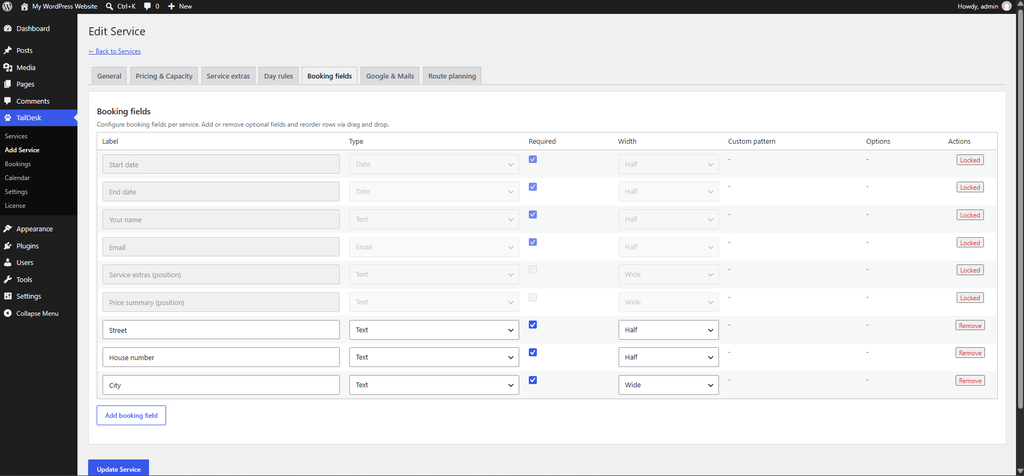
- Open the Booking fields tab.
Add a booking field
Click Add booking field to create a new field for this service. Each field can be configured with its own label, type, validation and layout width.
| Setting | What it controls |
|---|---|
| Label | The text customers see next to the field. |
| Type | The type of input shown in the booking form. |
| Required | Whether the customer must complete the field before submitting. |
| Width | Choose Half or Wide for the field layout. |
| Custom pattern | Optional validation rule for Formatted text fields. |
| Options | Comma-separated choices for Select and Radio fields. |
Available custom field types
TailDesk Pro supports the following custom field types:
- Text – a standard single-line text field.
- Email – validates the entered value as an email address.
- Formatted text – validates text against a custom regular expression.
- Number – accepts numeric input.
- Textarea – a larger multi-line text field.
- Select – a dropdown with predefined options.
- Radio – a set of predefined radio choices.
- Checkbox – a yes/no checkbox.
- Date – a date input.
Make a field required
Enable Required when the booking cannot be submitted without a value for that field. TailDesk validates required custom fields during submission and shows an error when required information is missing.
Use required fields selectively. Asking only for information you actually need keeps the booking form easier to complete.
Choose Half or Wide layout
Custom fields can use either Half or Wide width. Half-width fields can sit next to another compatible half-width field, while Wide fields take a full row.
This makes it possible to keep short fields compact while giving longer questions or text areas more space.
Use Select and Radio options
For Select and Radio fields, enter the available choices in the Options field as comma-separated values.
For example:
Small, Medium, LargeThese field types need at least one configured option. TailDesk also validates submitted values so customers cannot submit a value that is not part of the configured choices.
Use a custom pattern for formatted text
The Formatted text type can use a custom regular expression to validate input. This is useful for structured values that need a specific format.
The pattern must use regular expression syntax in /pattern/flags format. TailDesk validates the pattern before saving the field and rejects customer input that does not match it.
Use this option only when a normal Text, Email or Number field does not provide enough validation, because an overly strict pattern can make a booking form harder to complete.
Reorder fields for the service
Booking field rows can be reordered by drag and drop. Their saved order influences how service-specific fields are presented and which fields are available when configuring the Booking Form block.
You can combine this with the Booking Form block’s own Field Order settings to create a form layout that fits the selected service.
Core fields and optional fields
TailDesk always keeps the core booking information needed for the booking model. The foundation fields include Start date, End date, Your name and Email. These cannot simply be removed from the booking workflow.
Optional core fields such as Phone and Note can be configured per service with TailDesk Pro, alongside your own custom fields.
Custom field data is preserved with the booking
TailDesk Pro stores a snapshot of the booking field definitions and submitted values with each booking. This means historical booking data remains understandable even if you later rename, reorder or replace fields in the service configuration.
For example, changing a service question next month does not silently rewrite the field definition that belonged to bookings received today.
Why use service-specific booking fields?
Custom fields are one of the main advantages of TailDesk Pro for businesses with different booking workflows. Instead of forcing every service to ask the same questions, each service can collect exactly the information needed to prepare and deliver that service.