
Choose Which Services Appear in a Booking Form
Each TailDesk Booking Form can show all active services or only a selection of them. This lets you create one general booking page for every service, or separate forms for specific services, locations or types of care.
Open the Booking Form block settings
- Edit the WordPress page that contains your TailDesk Booking Form.
- Select the Booking Form block.
- Open the block settings in the editor sidebar.
- Find Form Settings and the Visible services option.
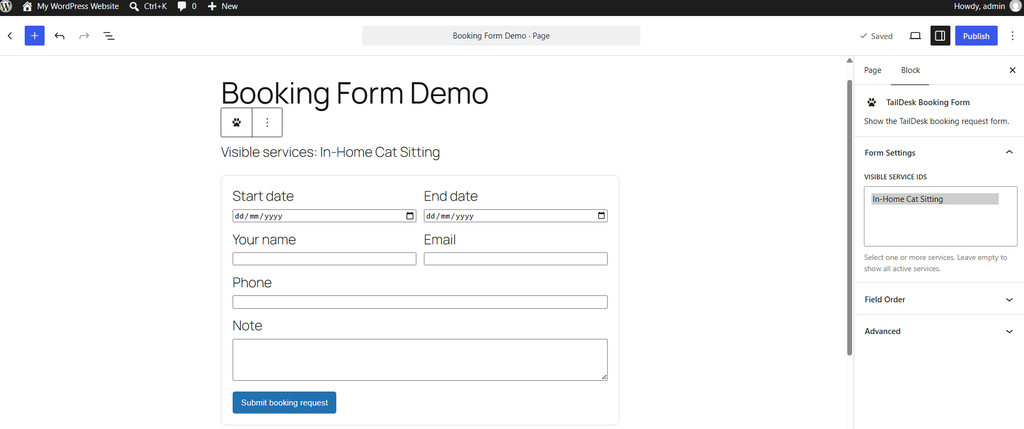
Show only selected services
Select one or more services under Visible services when this particular form should only accept bookings for those services.
For example, you might create one booking page for dog walking and another for pet sitting. Each page can use the same TailDesk Booking Form block while showing only the services that belong on that page.
Show all active services
Leave Visible services empty to let the form use all active TailDesk services.
This is useful for a general booking page because newly created active services can become available without having to add each service to the block manually.
What visitors see
The form adapts to the number of usable services:
- One visible service: TailDesk can carry that service as the selected service automatically, so the visitor does not need a meaningful service chooser.
- Multiple visible services: the booking form shows a service dropdown so the visitor can choose.
- No usable services: the form shows a safe unavailable message instead of allowing an invalid booking request.
Inactive services are never made public by the block
The Visible services setting only controls which active services may appear in that form. If a selected service is later deactivated in TailDesk > Services, it will not become publicly bookable just because its ID is still stored in the block.
If there are no active services at all, the WordPress editor warns you that a service needs to be created or activated before the form can be used normally.
A useful setup for multiple booking pages
You can add the TailDesk Booking Form to several WordPress pages and choose a different service selection for each block instance. Changing the services shown on one page does not change the Visible services setting of another Booking Form block.
This makes it easy to create focused landing pages while still managing the underlying services from one TailDesk installation.
Using a shortcode instead
If you use the TailDesk shortcode instead of the Gutenberg block, you can restrict the form with the service_ids attribute.
[taildesk_booking_form service_ids="12,15"]Replace 12,15 with the IDs of the services you want to show. Using
without a service restriction displays all active services.
TailDesk Pro and service-specific forms
The service selection itself is available in TailDesk Free. With TailDesk Pro, service-specific booking forms become even more useful because each service can also have its own custom booking fields, service extras and price display configuration. The block can then present the booking experience that belongs to the selected service instead of forcing every service to use exactly the same setup.